




At first glance this seems simple — but experts approach it very differently.
Computer Monitor Buying Guide: How to Pick the Best Display for Work, Gaming, or Creativity
Selecting the perfect computer monitor can feel like navigating a maze of technical specifications and marketing jargon. Yet, your display is arguably the most crucial component of your setup – it’s your window into your digital world, directly impacting your productivity, enjoyment, and eye comfort. A well-chosen monitor enhances your entire computing experience, while a poor one can lead to frustration and fatigue.
As your practical guide, we’ll demystify the options and help you pinpoint the ideal display tailored precisely to your needs, whether you’re crunching spreadsheets, conquering virtual worlds, or crafting visual masterpieces.
Understanding Your Primary Use Case
Before diving into specs, the most important question to ask yourself is: What will I be using this monitor for most? Your primary activity dictates which features are paramount and which are merely nice-to-haves.
For Work and General Productivity
If your daily routine involves documents, spreadsheets, web browsing, and video calls, your focus should be on comfort, clarity, and screen real estate. Ergonomics and eye strain reduction are key.
- Resolution & Size: A larger screen with higher resolution (e.g., 27-inch QHD/1440p or 32-inch 4K) means more content fits on screen, reducing scrolling and improving multitasking.
- Panel Type: IPS (In-Plane Switching) panels offer excellent viewing angles and good color reproduction, essential when sharing your screen or working from slightly off-center.
- Ergonomics: Look for a stand with height adjustment, tilt, swivel, and pivot (for portrait mode) to maintain a healthy posture and reduce neck strain. VESA mount compatibility is also a plus for monitor arms.
- Connectivity: Multiple inputs (HDMI, DisplayPort) are useful for connecting various devices. USB-C with power delivery can simplify your desk setup if you use a laptop.
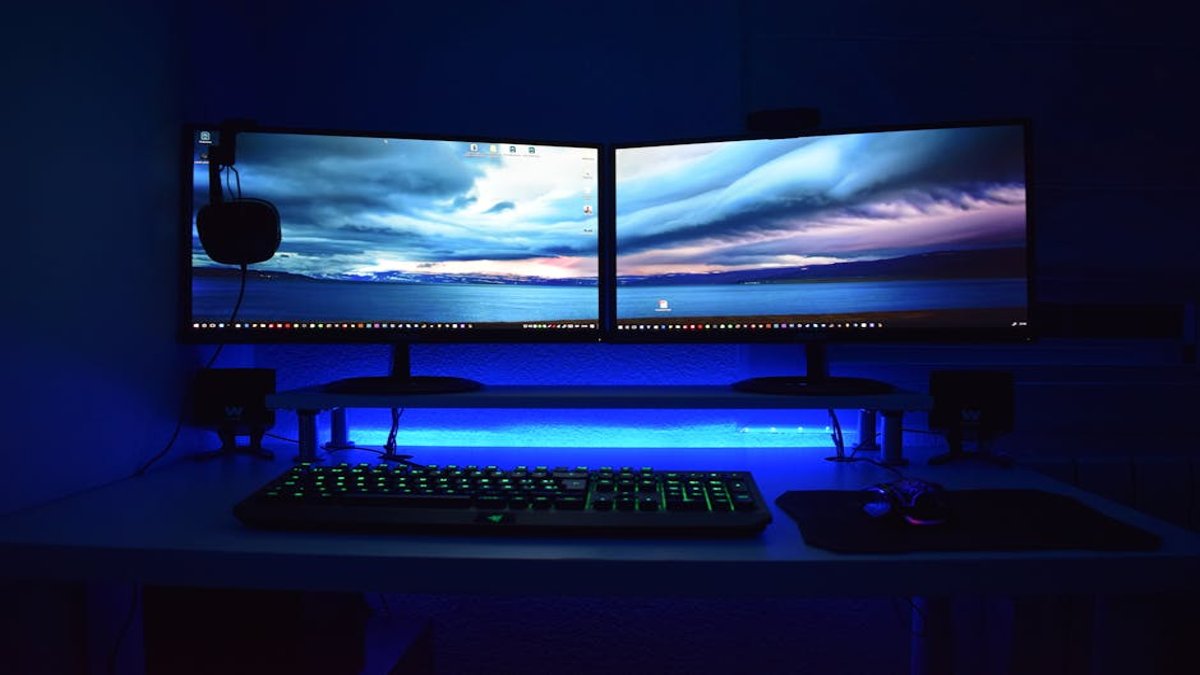
Consultant Tip: Consider a dual-monitor setup or an ultrawide display (21:9 aspect ratio) for significant productivity gains. The added horizontal space dramatically improves workflow efficiency.
For Gaming Enthusiasts
Gamers demand responsiveness, smooth visuals, and immersive experiences. Every millisecond and every frame per second counts.
- Refresh Rate: Higher refresh rates (120Hz, 144Hz, 240Hz, or even higher) provide smoother motion, crucial for fast-paced games. This is arguably the single most important spec for competitive gaming.
- Response Time: A low response time (1ms GTG – Gray-to-Gray is ideal) minimizes motion blur and ghosting, keeping fast-moving objects crisp.
- Adaptive Sync: Technologies like NVIDIA G-Sync or AMD FreeSync synchronize the monitor’s refresh rate with your GPU’s frame rate, eliminating screen tearing and stuttering for a fluid gaming experience. Ensure compatibility with your graphics card.
- Resolution: While 4K gaming looks stunning, it requires a powerful GPU to maintain high frame rates. 1080p (Full HD) is still popular for competitive gamers prioritizing frame rate, while 1440p (QHD) offers a great balance of visual fidelity and performance.
- Panel Type: TN panels historically offered the fastest response times, but modern IPS and even some VA panels now compete closely, offering better colors and viewing angles without significant response time compromises.
Consultant Tip: Don’t chase the highest specs across the board if your GPU can’t keep up. A 144Hz 1440p monitor is often a better investment than a 240Hz 4K display if your graphics card struggles with high frame rates at 4K. Navigating Contract Law: A Business Owner’s Guide to Legal Agreements
For Creative Professionals (Photo/Video Editing, Graphic Design)
Accuracy, consistency, and detail are paramount for anyone working with visual media. Your monitor is your primary tool for judging color and composition. How to Create and Sell Digital Products (Beyond Courses and Ebooks)
- Color Accuracy & Gamut: Look for monitors that cover a wide color gamut (e.g., 99%+ sRGB, a high percentage of Adobe RGB or DCI-P3). Factory calibration reports are a good sign of quality.
- Panel Type: IPS panels are the standard for creative work due to their superior color reproduction, excellent viewing angles, and consistency.
- Resolution & Size: High resolutions (4K is highly recommended for video editing and detailed design) on larger screens (27-inch and above) provide ample workspace and allow you to see fine details without constant zooming.
- Uniformity: Ensure the monitor displays consistent brightness and color across the entire screen, not just the center.
- HDR Support: For video editors working with HDR content, a monitor with VESA DisplayHDR certification is essential, though true professional-grade HDR monitors can be quite expensive.
Consultant Tip: Invest in a hardware color calibrator. Even the best monitors can drift over time, and regular calibration ensures your colors remain accurate and consistent across projects and devices. How to Build a Diversified Investment Portfolio for Long-Term Growth
Essential Monitor Specifications to Consider for Everyone
Beyond your specific use case, several core specifications impact every user’s experience. Understanding these will empower you to make an informed decision.
Screen Size and Resolution: The Clarity Connection
Screen size is the physical diagonal measurement. Resolution refers to the number of pixels displayed (e.g., 1920×1080 for Full HD). These two specs are intrinsically linked, determining pixel density (PPI – pixels per inch).
- Full HD (1080p): Common for smaller monitors (up to 24 inches) and budget gaming.
- QHD/2K (1440p): A popular sweet spot for 27-inch monitors, offering sharpness without excessive GPU demands.
- 4K/UHD (2160p): Offers incredible detail on 27-inch and larger displays, but requires more processing power.
- Ultrawide: Monitors with a 21:9 or 32:9 aspect ratio expand your horizontal view, great for multitasking or immersive gaming.
A good rule of thumb: aim for at least 90-110 PPI for comfortable viewing. Too low, and text can appear pixelated; too high, and you might need scaling, which can sometimes introduce blurriness in older applications.
Panel Type: IPS, VA, or TN?
Each panel technology has distinct characteristics:
- IPS (In-Plane Switching): Best color accuracy and widest viewing angles. Ideal for creative work, general use, and increasingly competitive for gaming.
Pros: Excellent colors, wide viewing angles.
Cons: Can have “IPS glow” (light bleed at corners), typically slower response times than TN (though improving). - VA (Vertical Alignment): Offers excellent contrast ratios, leading to deep blacks and vibrant colors. Good for media consumption and single-player gaming.
Pros: Deep blacks, high contrast.
Cons: Slower response times than TN, viewing angles not as wide as IPS, some “smearing” with dark colors. - TN (Twisted Nematic): Fastest response times and highest refresh rates, making them a go-to for competitive gamers on a budget.
Pros: Very fast response times, high refresh rates, affordable.
Cons: Poor viewing angles (colors shift when viewed off-center), less accurate color reproduction.
Refresh Rate and Response Time: The Fluidity Factors
- Refresh Rate (Hz): How many times per second the image on the screen is updated. Higher numbers mean smoother motion.
- 60Hz: Standard for productivity and casual use.
- 120Hz+: Essential for smooth gaming, especially fast-paced genres.
- Response Time (ms): How quickly a pixel can change from one color to another. Lower numbers reduce motion blur and ghosting.
- 5ms: Generally acceptable for casual use and some gaming.
- 1ms: Gold standard for competitive gaming.
Color Accuracy and Gamut: For the Visual Purist
Color gamut describes the range of colors a monitor can display. Common standards include:
- sRGB: The standard for web content. Nearly all monitors cover 100% sRGB.
- Adobe RGB: A wider gamut often used in print and professional photography.
- DCI-P3: A cinematic standard, increasingly relevant for HDR video content.
For critical work, look for monitors with high coverage of your target gamut and a low Delta E value (a measure of color error, lower is better, <2 is excellent).
Connectivity: Plugging In
Ensure your chosen monitor has the ports you need for your devices. Common connections:
- HDMI: Universal, supports audio and video. Version number (e.g., 2.0, 2.1) dictates bandwidth and resolution/refresh rate capabilities.
- DisplayPort: Often preferred for PC gaming due to higher bandwidth for high refresh rates and adaptive sync.
- USB-C: A versatile single-cable solution for laptops, carrying video, data, and power delivery.
- USB Hub: Convenient for connecting peripherals directly to your monitor.
Ergonomics and Additional Features
Don’t overlook features that enhance comfort and convenience:
- Adjustable Stand: Height, tilt, swivel, pivot. Non-negotiable for long-term comfort.
- VESA Mount: Allows you to attach the monitor to an aftermarket arm or wall mount.
- Blue Light Filter/Flicker-Free: Reduces eye strain during extended use.
- HDR (High Dynamic Range): Offers a wider range of brightness and contrast for more lifelike visuals, primarily beneficial for gaming and media consumption. Look for VESA DisplayHDR certifications for reliable performance.
Making Your Final Decision
With a clear understanding of your needs and the technical specifications, you’re ready to make your choice. Remember these final considerations:
- Budget: High-end features come with a price. Prioritize what’s most important for your primary use case and allocate your budget accordingly. You might not need a 4K 240Hz display if you’re only browsing the web.
- Future-Proofing: Consider your needs for the next 3-5 years. A slightly better investment now can save you from an early upgrade.
- Reviews: Consult reputable tech reviews and user testimonials for real-world performance insights, especially regarding panel consistency and warranty support.
Expert Tip
Don’t underestimate the power of a quality monitor stand or monitor arm. Ergonomics directly impact your long-term health and productivity. A display at the correct height and distance can prevent years of discomfort, making even a budget monitor feel significantly more premium and usable.
Your monitor is more than just a screen; it’s a gateway to your digital world. By carefully considering your individual needs and understanding the key specifications, you can confidently choose a display that not only meets but exceeds your expectations, enhancing every moment you spend in front of it.